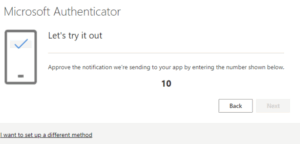


Step 1 -Download Microsoft Authenticator
- For Apple: Microsoft Authenticator on the App Store
- For Android: Microsoft Authenticator – Apps on Google Play
Step 2 – Open this link https://aka.ms/mfasetup
Step 3 – Sign in using your work email and temporary password (contained in the welcome email).
Step 4 – Click Next and follow the instructions:
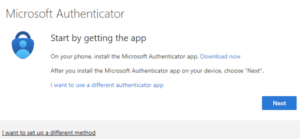
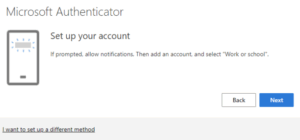
Step 5 – Tap the ‘+’ in the top right to add an account, select ‘Work or School’
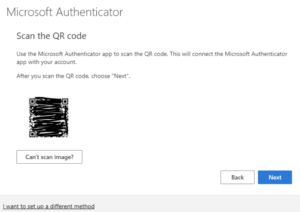
Step 6 – Scan the QR code with your authenticator app
Step 7 – Enter the code on screen into your authenticator app